
Get LexEdge on every screen you work from. Pick yours.
Phone, tablet, desktop, browser and inside Microsoft Word — the same workspace, the same matters, the same account. Each section below has the download and the exact steps to get running.
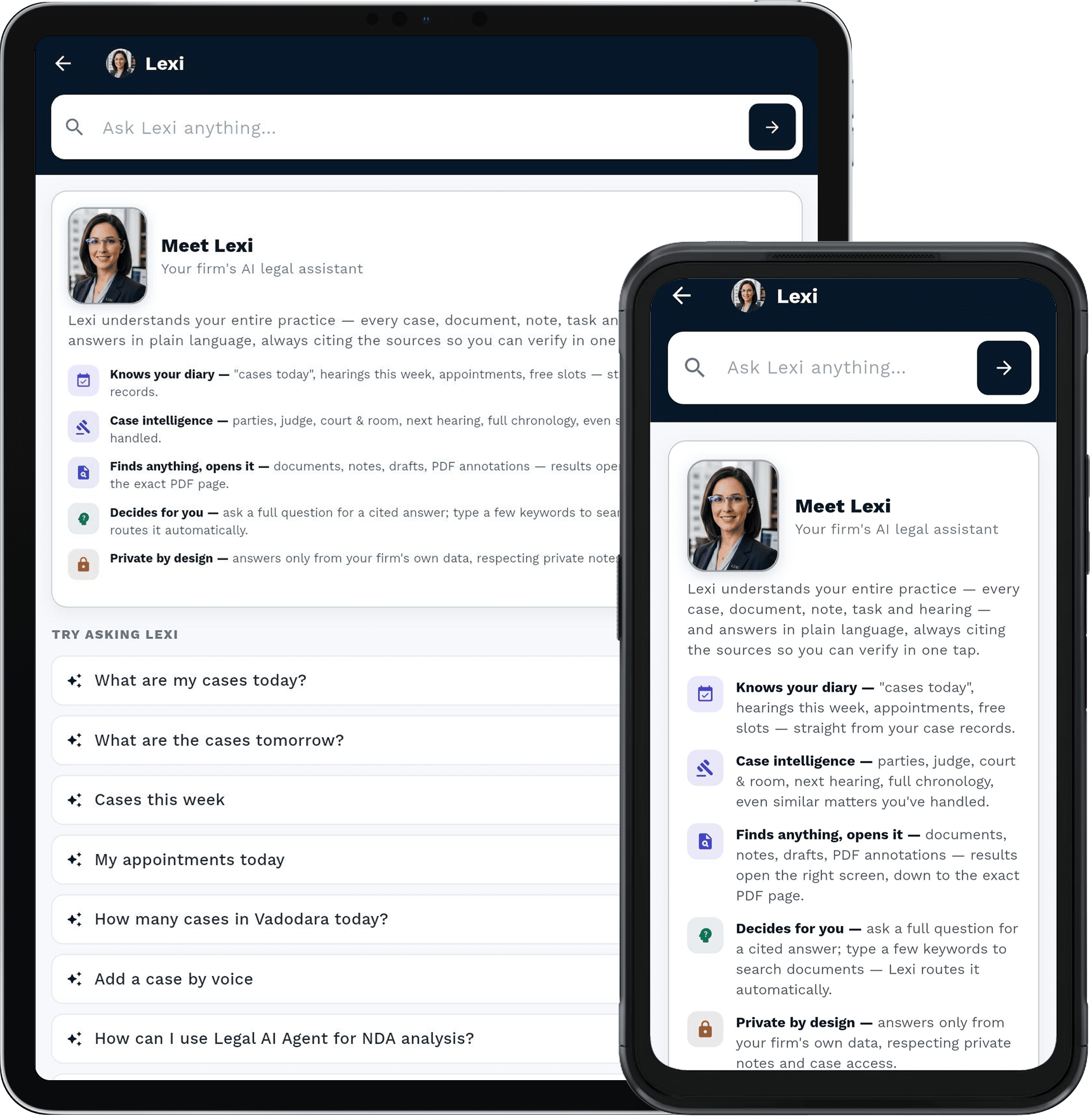
LexEdge for Android
Your whole practice in your pocket — offline in court.
The full workspace on any Android phone or tablet. Cases, hearings, diary, documents, drafting and Lexi — all working without a signal and syncing the moment you are back on the network.
- Works offline in court — drafts, notes and annotations sync on reconnect
- Stylus support on tablets, including Samsung S Pen
- Scan diary pages, deeds and orders with the phone camera
- Biometric app lock · per-device session control
- Hearing and limitation reminders on WhatsApp and push
- 1Tap “Get it on Google Play” below (Android 8.0 or later).
- 2Install, then open the app and enter your firm’s workspace address.
- 3Sign in with your registered email or mobile number and verify the OTP.
- 4Choose the modules you want on the device — cases, diary, drafting, research.
- 5Let the first sync finish on Wi-Fi so your matters are available offline.
 Direct
APK (enterprise) · coming soon
Direct
APK (enterprise) · coming soon
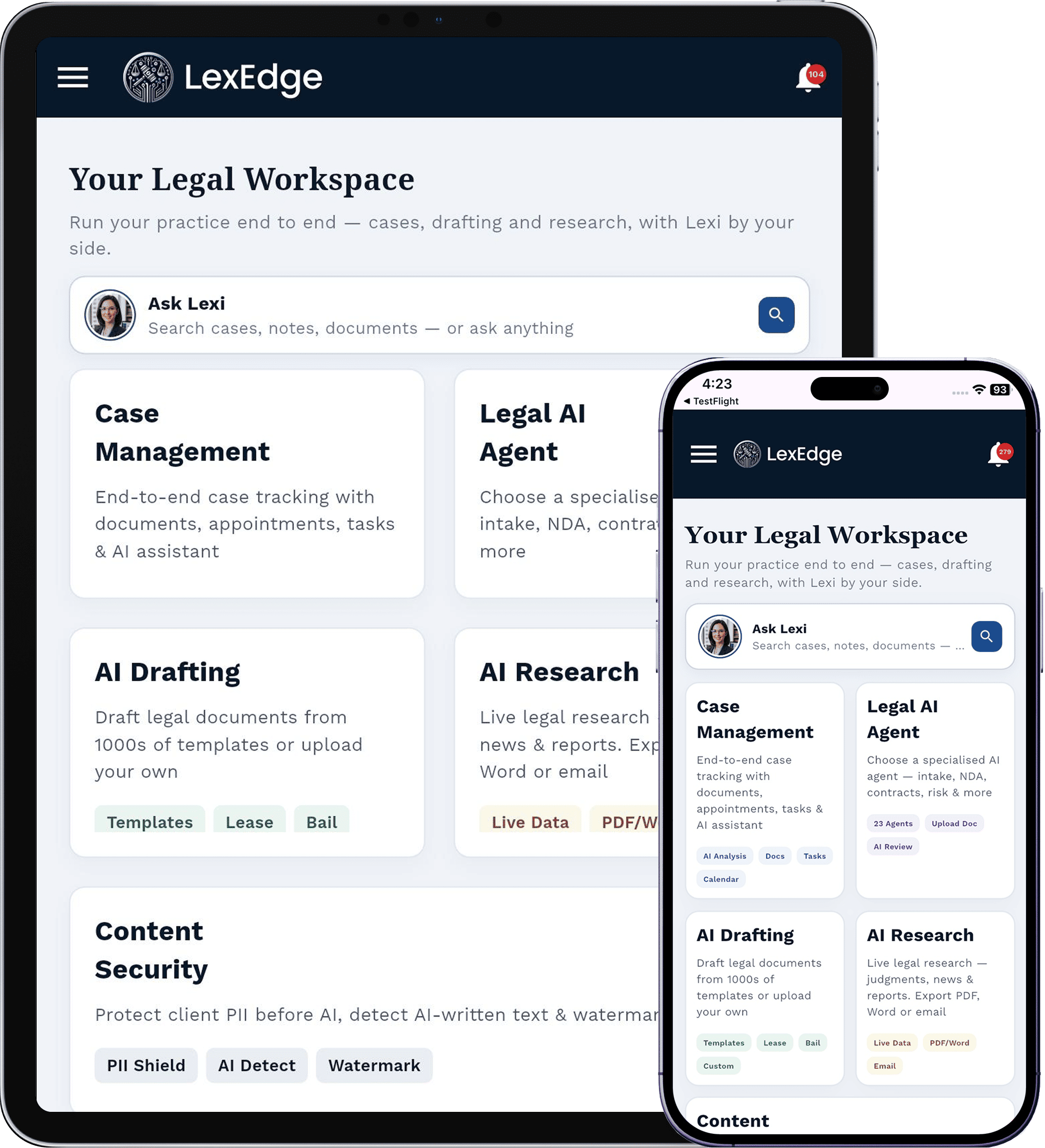
LexEdge for iPhone & iPad
Apple Pencil on the brief. Face ID on the file.
A native iOS and iPadOS build of the same workspace. Annotate briefs with an Apple Pencil, dictate matter notes on the way to court, and keep everything locked behind Face ID.
- Universal app — one download for iPhone and iPad
- Apple Pencil annotation on PDFs and drafts, offline
- Dictation in twelve Indian languages
- Face ID / Touch ID lock · encrypted on-device storage
- Handoff between iPad in court and desktop in chambers
- 1Tap “Download on the App Store” below (iOS / iPadOS 15 or later).
- 2Install, open the app, and enter your firm’s workspace address.
- 3Sign in with your registered email or mobile number and verify the OTP.
- 4Allow notifications so hearing and deadline reminders reach you.
- 5Run the first sync on Wi-Fi to cache your matters for offline use.

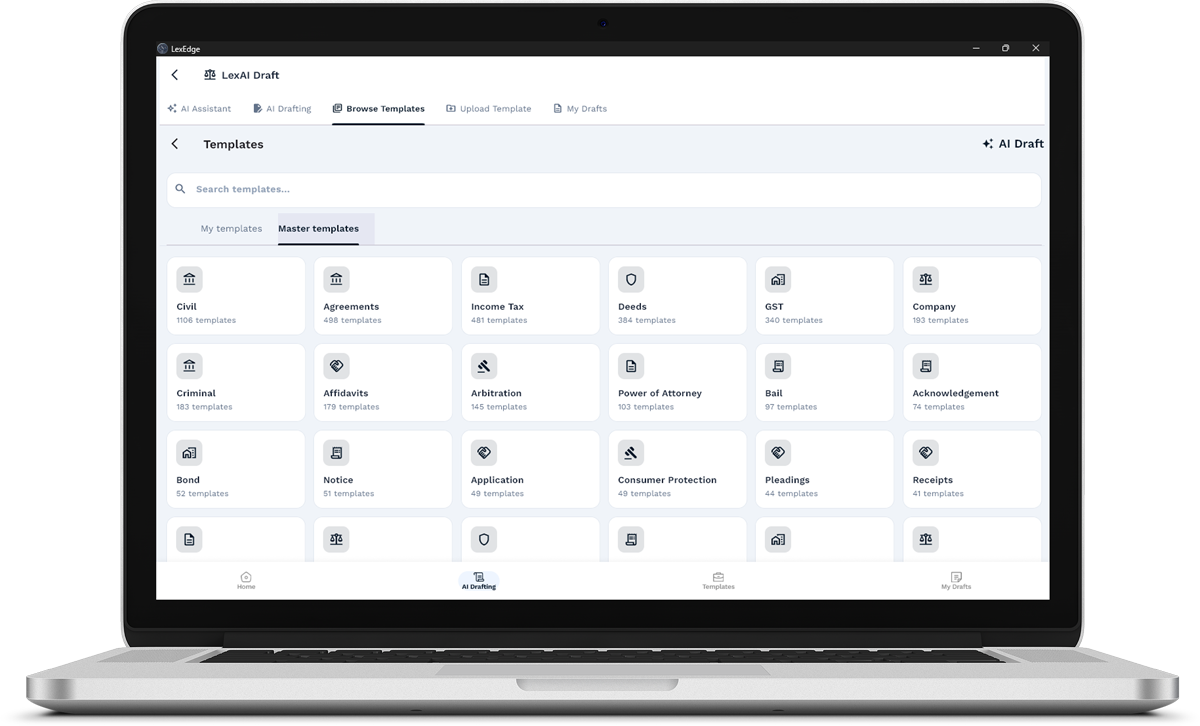
LexEdge for Windows
The desk machine build — full keyboard, full speed.
A native Windows desktop app for the machine you actually draft on. Multi-window matters, keyboard shortcuts throughout, local document vault, and drafting that keeps working when the office line drops.
- Native installer — no browser, no tab juggling
- Multi-window: matter on one screen, draft on the other
- Local encrypted vault with background sync
- Full keyboard shortcuts and system-wide quick capture
- Prints and exports DOCX / PDF straight from the app
- 1Click “Download for Windows” below to get the installer (.exe).
- 2Run the installer. If SmartScreen appears, choose “More info” → “Run anyway”.
- 3Launch LexEdge and enter your firm’s workspace address.
- 4Sign in with your registered email and verify the OTP.
- 5Pick a folder for the offline vault, then let the first sync complete.
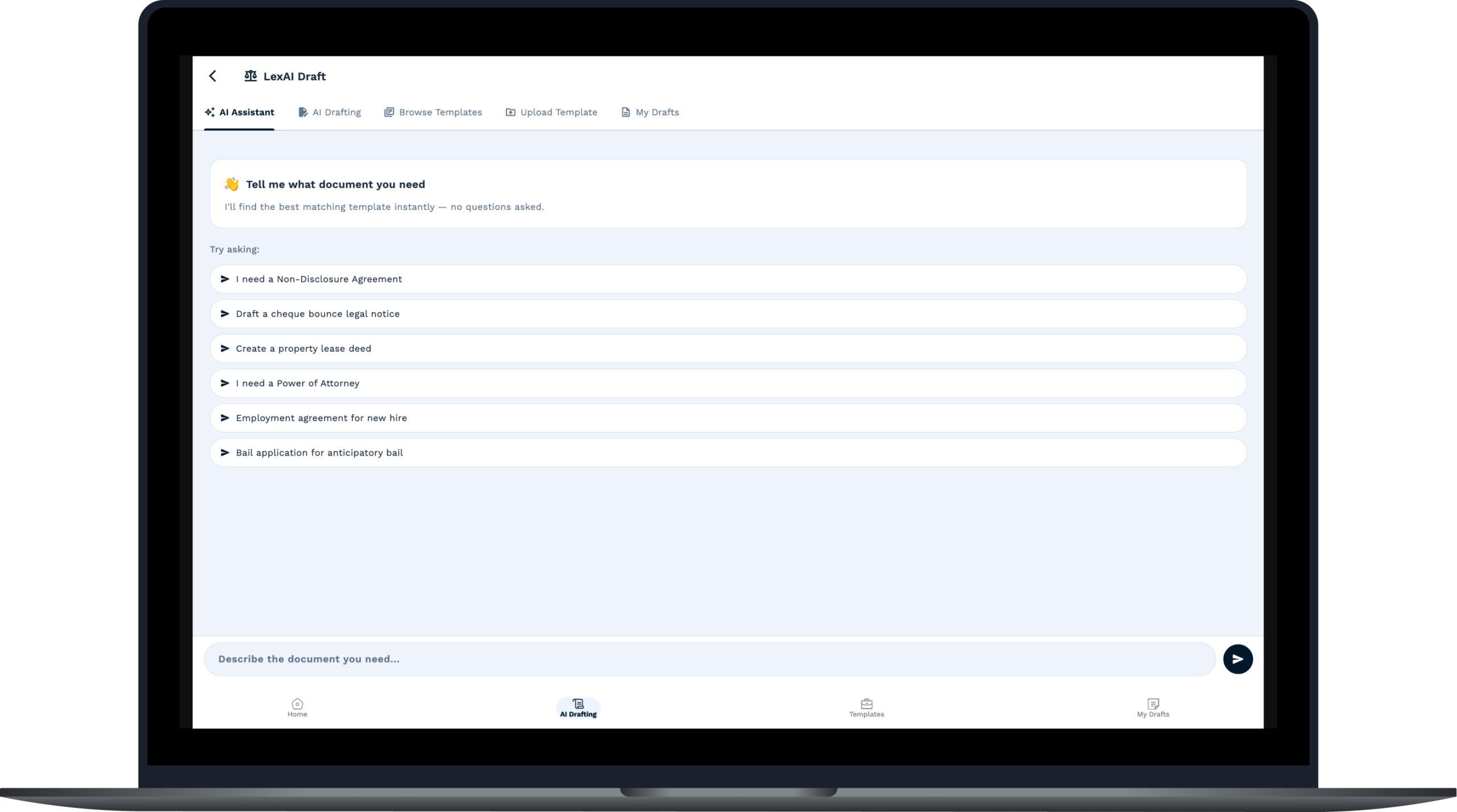
LexEdge for macOS
Apple silicon native. Chambers-grade quiet.
A native macOS build, universal for Apple silicon and Intel. Same workspace, same offline vault, with the Mac conventions you expect — Spotlight-style search, menu bar quick capture, and system share sheet.
- Universal binary — Apple silicon and Intel
- Menu-bar quick capture for notes, tasks and hearing entries
- Command-palette search across every matter and document
- Local encrypted vault with background sync
- Share-sheet integration with Mail, Finder and Preview
- 1Click “Download for macOS” below to get the disk image (.dmg).
- 2Open the .dmg and drag LexEdge into your Applications folder.
- 3First launch only: right-click the app → “Open” to clear Gatekeeper.
- 4Enter your firm’s workspace address and sign in with your OTP.
- 5Choose the offline vault location, then let the first sync finish.
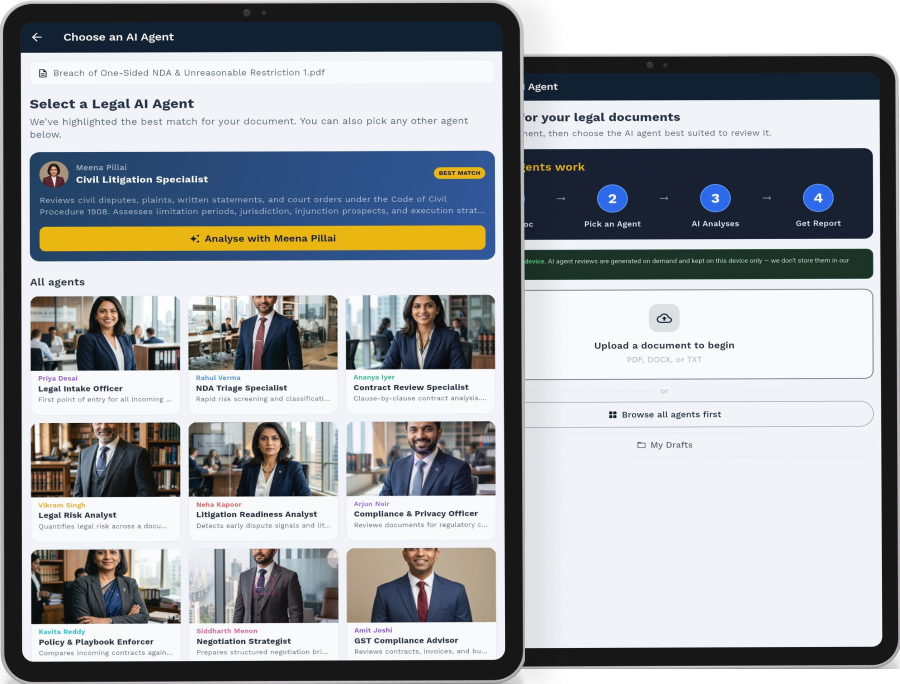
Free Personal Legal Agent
For everyone who is not a law firm — and still has a legal problem.
A free, standalone assistant for individuals and small businesses. Understand a notice you have received, ask a question in plain Hindi or English, and produce a straightforward document — without a firm account and without a card.
- Free to use — no firm workspace, no credit card
- Ask in Hindi, Hinglish or English and get a plain-language answer
- Understand notices, orders, agreements and demand letters
- Generate simple documents: replies, complaints, undertakings
- Upgrade to the full LexEdge workspace whenever you need it
- 1Open the Personal Legal Agent download page below.
- 2Pick your platform — Android, iOS, Windows, macOS or the browser.
- 3Install and open it. No firm code and no payment details are needed.
- 4Sign in with your mobile number or email and verify the OTP.
- 5Ask your first question, or upload the notice you want explained.
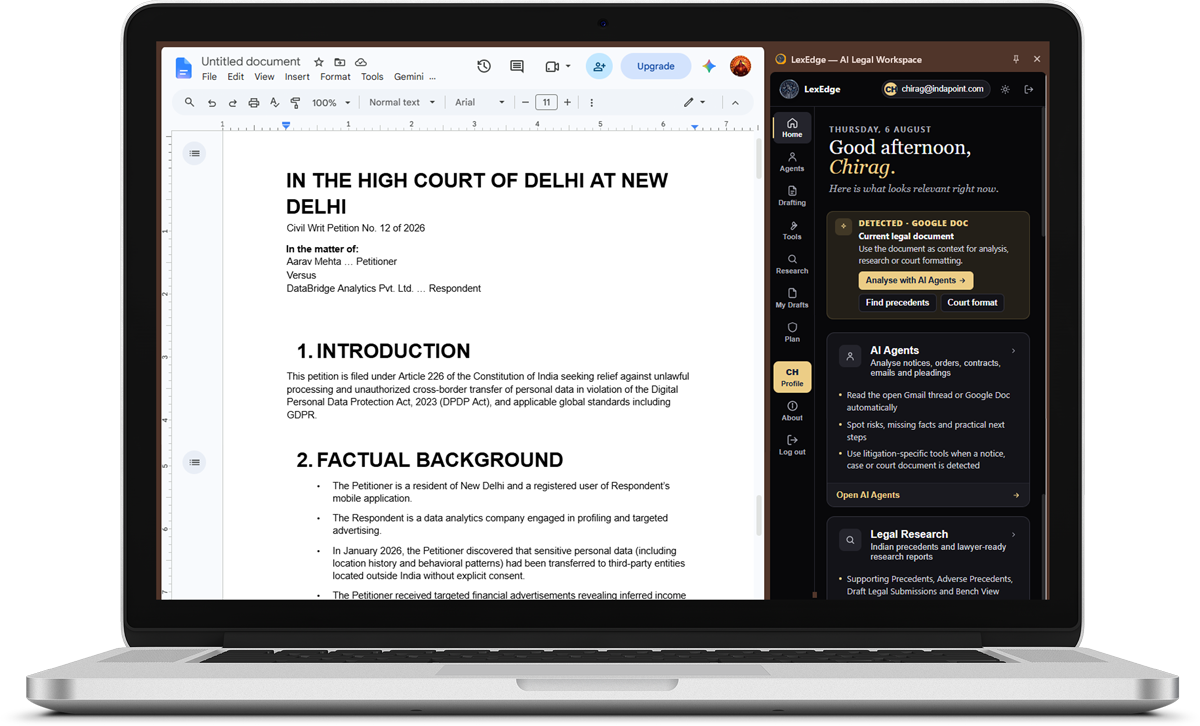
LexEdge Chrome Extension
Research, draft and check a citation without leaving the tab.
The workspace as a side panel in any browser tab. Read a judgment and pull it into a brief, select text on any page and rewrite it, or verify a citation against the registry — all without switching apps. Works on Chrome and Edge.
- Side panel on any website — judgment portals, mail, drives
- Select any text → summarise, rewrite or draft from it
- One-click citation check against the court registry
- Save a page, order or PDF straight into the right matter
- Signs in with your existing LexEdge workspace session
- 1Open the Chrome Web Store listing below and click “Add to Chrome”.
- 2Confirm “Add extension” when the browser asks for permission.
- 3Pin LexEdge to the toolbar so the side panel is one click away.
- 4Click the icon and sign in with your LexEdge account.
- 5On Edge: use the same link and allow extensions from other stores.
Manual install (developer / staging build)
- 1Download the .zip below and unzip it to a permanent folder.
- 2Open chrome://extensions and switch on “Developer mode”.
- 3Click “Load unpacked” and select the unzipped folder.
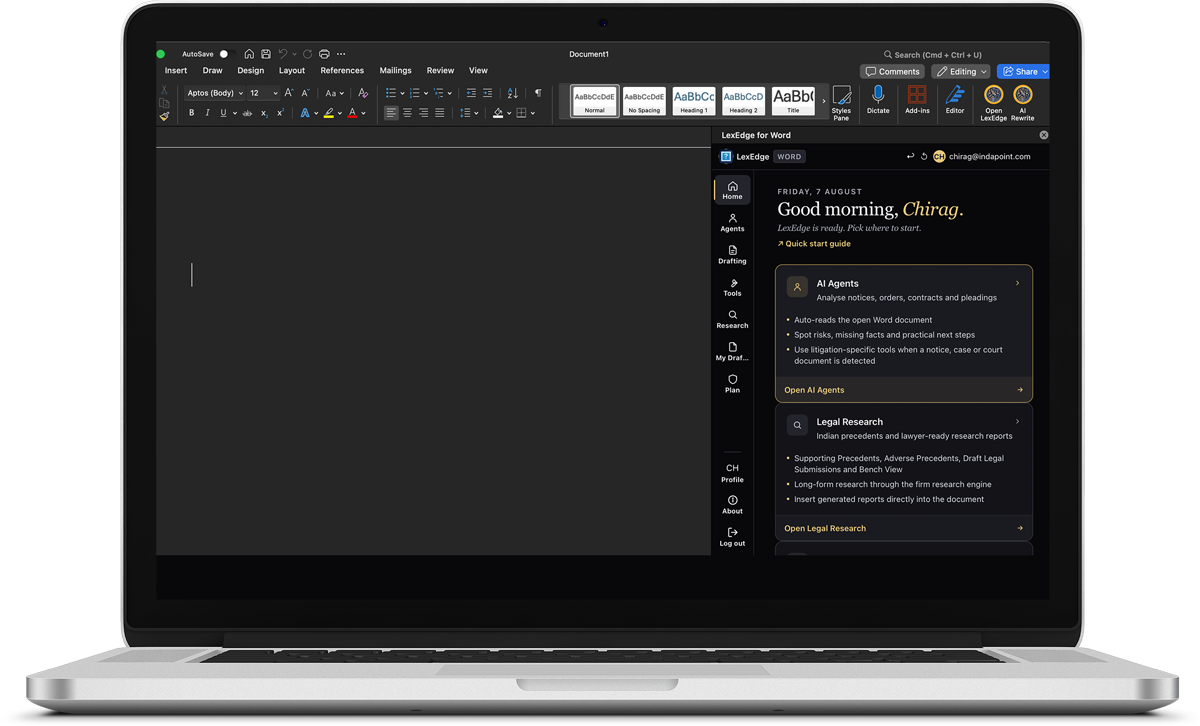
LexEdge Add-in for Microsoft Word
Drafting help inside the document you are already writing.
LexEdge sits in a Word taskpane. Rewrite a clause, pull in firm boilerplate, run a risk pass, or verify every citation in the document — with track changes preserved. Works in Word on Windows, Mac and the web.
- Rewrite, tighten or expand any selected paragraph in place
- Insert firm boilerplate and jurisdiction-aware clauses
- Risk pass over the whole document with inline comments
- Citation verification across the full draft in one run
- Track changes preserved — nothing is silently overwritten
- 1In Word, open Home → Add-ins → “Get Add-ins”, search “LexEdge”, click “Add”.
- 2Or open the Microsoft AppSource listing below and choose “Get it now”.
- 3Open the LexEdge tab in the ribbon and click “Open LexEdge”.
- 4Sign in with your LexEdge account in the taskpane.
- 5Select any paragraph and pick an action — rewrite, risk or verify.
Manual install (sideload the manifest)
- 1Download the manifest .xml below and keep it somewhere permanent.
- 2In Word: Insert → My Add-ins → “Upload My Add-in”.
- 3Choose the .xml file — the LexEdge tab appears in the ribbon.
What each build needs.
One account covers every platform. Installing on a new device does not change your bill.
Questions people ask while installing.
Do I need a separate account for each app?
No. One LexEdge account works everywhere. Sign in on any app with the same email or mobile number and your matters, drafts and diary appear on that device.
Is there a cost to download?
The apps themselves are free to download. Your LexEdge subscription is what decides which capabilities are active, and it is billed once for the whole firm regardless of how many devices you install on.
How many devices can I install on?
Install on as many of your own devices as you like — phone, tablet, laptop and desktop. Sessions are tied to your user, and you can sign a device out remotely from your account settings.
Will the apps work without internet?
Yes. The mobile and desktop apps keep an encrypted local copy of your matters. You can read files, annotate, draft and take notes offline, and everything syncs when you reconnect.
Windows says the installer is unrecognised. Is that a problem?
That is Microsoft SmartScreen reacting to a newly signed installer, not a virus warning. Choose “More info”, then “Run anyway”. The same applies to Gatekeeper on macOS — right-click the app and choose “Open” on first launch.
The Word add-in does not appear in the ribbon.
Close and reopen Word after installing. If it is still missing, go to Insert → My Add-ins → Refresh. For a sideloaded manifest, keep the .xml file in a permanent folder — Word reads it each time it starts.
Can I use the Chrome extension on Edge or Brave?
Yes. Both accept Chrome Web Store extensions. On Edge you will be asked once to allow extensions from other stores; approve it and the install proceeds normally.
What is the Free Personal Legal Agent?
It is a free standalone assistant for individuals and small businesses — not firms. It answers legal questions in plain language, explains notices you have received, and drafts simple documents. No firm workspace and no card are required.
How do updates work?
Store apps update through Google Play and the App Store. Desktop apps check for updates on launch and install them in the background. The Word add-in and Chrome extension update from the server with no action from you.
What if my firm has not been set up yet?
Download anything you like and sign in with your email — if there is no workspace yet, you will be guided through creating one, or you can contact us and our team will set it up with you in a single session.
Installed it? We will set it up with you.
Our onboarding team gets a practice running in a single session — data brought across, devices signed in, staff trained. No IT department required.